HOSTING CONTROLLER 8 MANUALS :: Host Admin |
|
HOSTING CONTROLLER 8 MANUALS :: Host Admin |
|
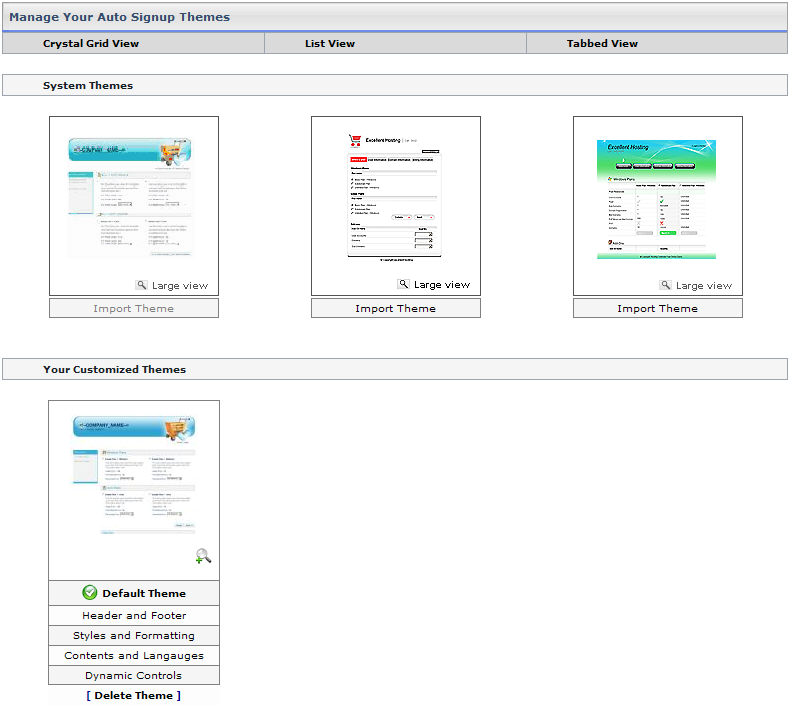
To set the auto signup themes
Click the Auto Signup menu under the Toolbox section
Click the Auto Signup Themes under the General Configurations section.
Select Import Theme to apply your required theme to the Auto Signup page.
Select Header and Footer to customize the header & footer of your selected theme as required.
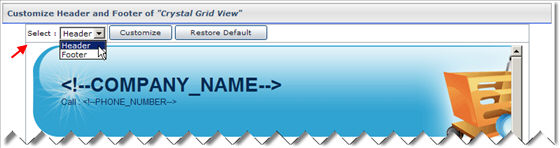
Select Restore Default to configure the default settings of the panel and Customize to specify your required settings for header/footer:
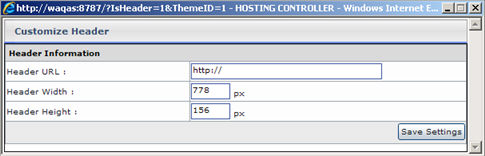
Select Save Settings to apply the specified information/changes.
Select Styles and Formatting to apply different styles to your selected theme as required.
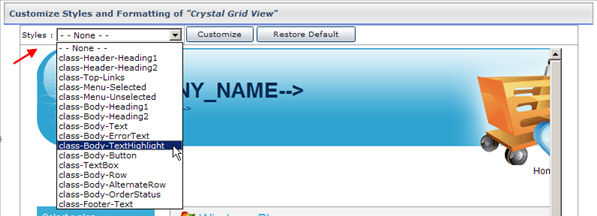
Select Restore Default to configure the default settings of the panel and Customize to specify your required settings for styles:
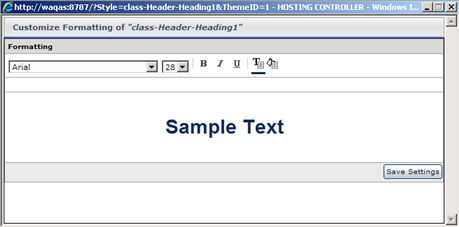
Select Save Settings to apply the specified information/changes.
Select Contents and Languages to choose required contents and languages for your selected theme.
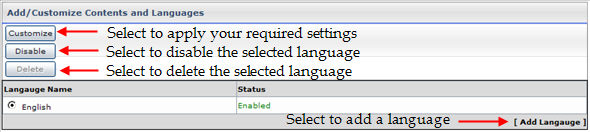
Select Add Language to add your required language or Customize to specify your required settings for contents and languages:

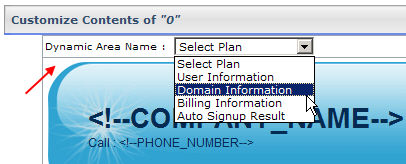
Select Save Contents or Restore Defaults to apply the specified information/changes or to reset settings respectively.
Select Dynamic Controls to add certain dynamic control options to your selected theme as required.
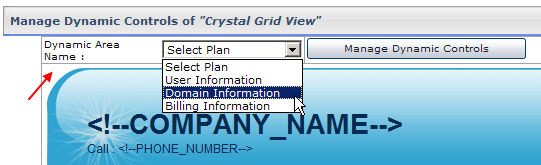
Select Manage Dynamic Controls to specify your required settings for controls:
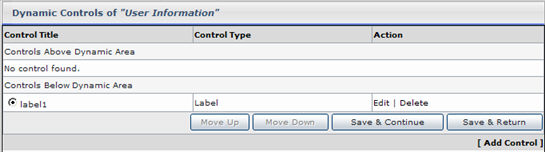
Select Add Control to add a new control as required:
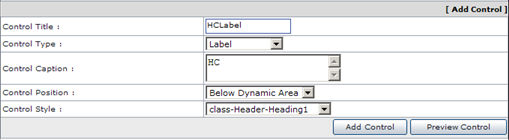
Specify required information and select Preview Control to view how your control looks like. Once you are satisfy with the outlook then select Add Control to add the control as per the specified information.
Select Delete Theme to remove the current theme from the Auto Signup page